VicoHome
VicoHome is an app for viewing and managing compatible security cameras. Add your camera, watch live video, view recordings, and manage motion alerts from your phone.
Download VicoHome App
Choose your phone’s app store to get started, or explore VicoHome for PC.
Download Android APK Version 2.81.0

What Can You Do with VicoHome?
Use the app for everyday camera monitoring and settings. Available features depend on your camera and service plan.
Live View
Open your connected camera in the app to see what is happening at home.
Explore the camera manualVideo Recording
Find recorded events and use local MicroSD storage on supported cameras. Cloud video history depends on your plan.
View recording settingsMotion Alerts
Manage motion notifications and adjust detection settings to suit your camera’s location.
Adjust motion detectionCamera Sharing
Invite a family member to access a camera through their own VicoHome account.
See how sharing worksHow to Set Up Your VicoHome Camera
Have your phone, camera, and Wi-Fi password ready. Follow your camera’s instructions for power and pairing mode.
- Install and sign in
Download VicoHome on your phone, then register an account or sign in.
- Prepare your camera
Power on or charge the device and put it into pairing mode as described in its manual.
- Add the device
Tap the add-camera button in the app and follow the prompts to connect to the Wi-Fi band your model supports.
- Check your settings
Open live view, name the camera, and choose the recording and notification settings you need.
Check out our complete guide for using the VicoHome camera. We’ll be demonstrating with a battery camera and an iPhone. The steps are the same for both Apple and Android, though the interface might look a little different.
Allow the permissions needed for the features you use, such as Bluetooth or local-network access during setup. Permission prompts vary by phone and camera.
Registration and Login for VicoHome
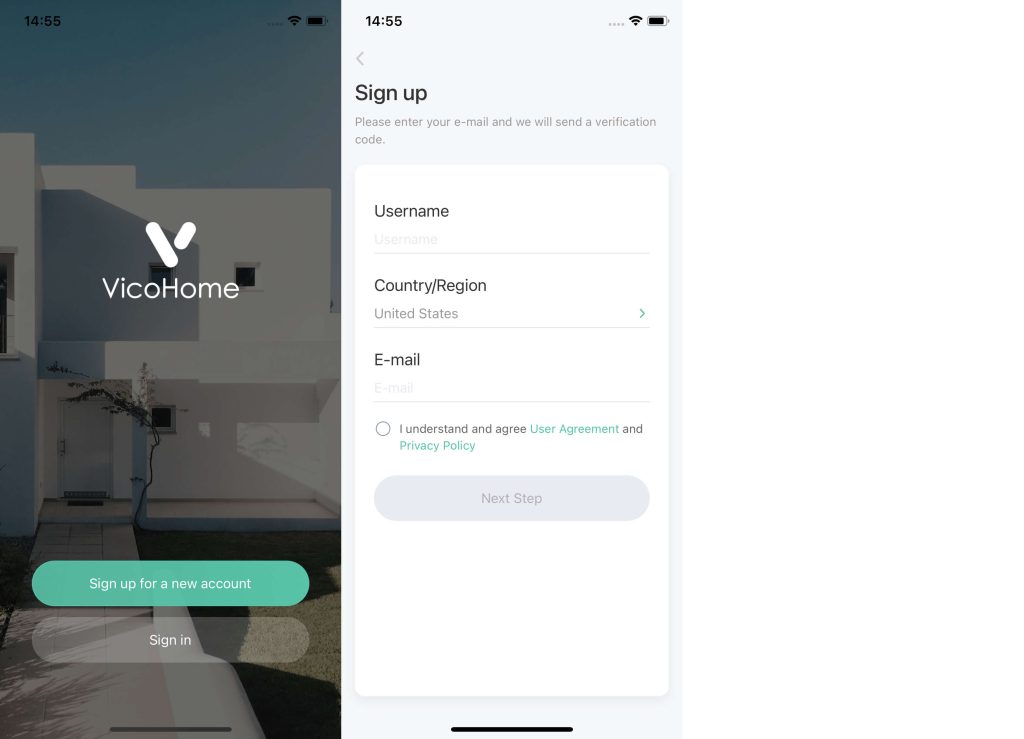
To connect your VicoHome camera, you must log in to an account first. If you are using VicoHome for the first time, please register an account and then log in.
Click “Sign up for a new account” to begin. VicoHome supports registration via email; simply enter your username, select your country, and provide your email address to register.
Connecting the VicoHome Camera
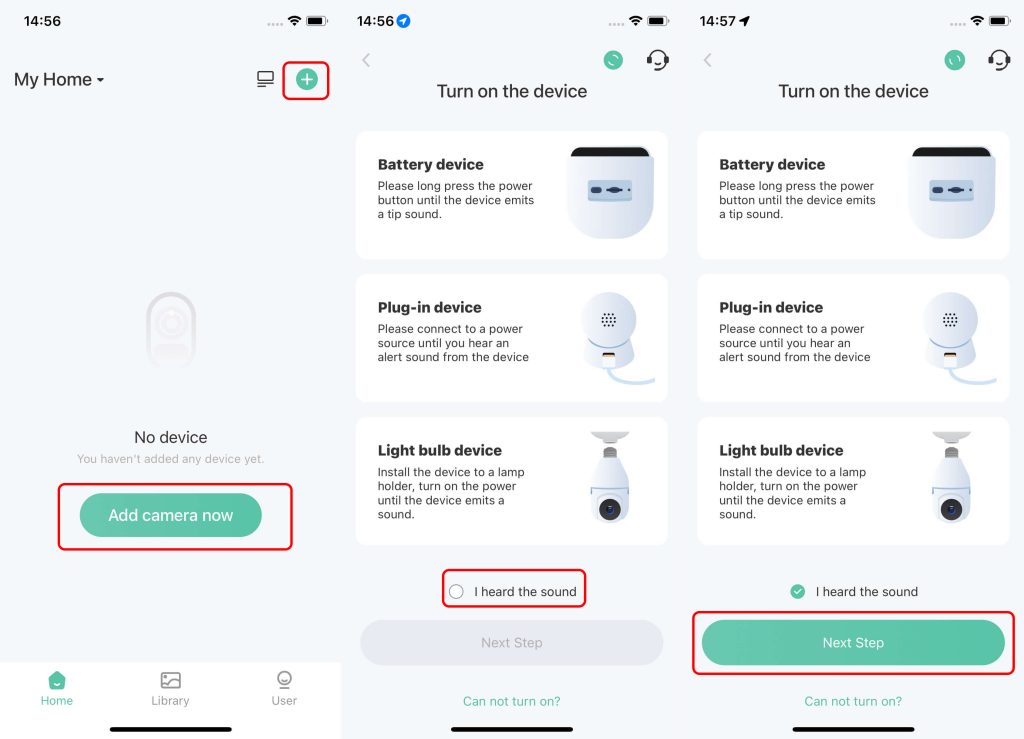
Before connecting your VicoHome camera, make sure the VicoHome camera is powered on and in a state waiting to be connected.
Battery Cameras: Such as the Solar Camera, Bird Feeder with Camera, and Doorbell camera. Please charge the device first, then press and hold the power button to turn it on. The camera will play a prompt tone once it has started up.
Plug-in Cameras: Such as the Outdoor Camera and Indoor Camera that require a power connection to operate. Connect the device to a power source, and it will turn on automatically. Please wait a few seconds; the camera will play a prompt tone once it has started up.
Light Bulb Cameras: Install the light bulb camera into the bulb socket and turn on the power until the device emits a sound.
1. Tap Add camera now or the ‘+’ button. Ensure the camera has emitted a prompt tone, then click I heard the sound, and tap Next Step to proceed.
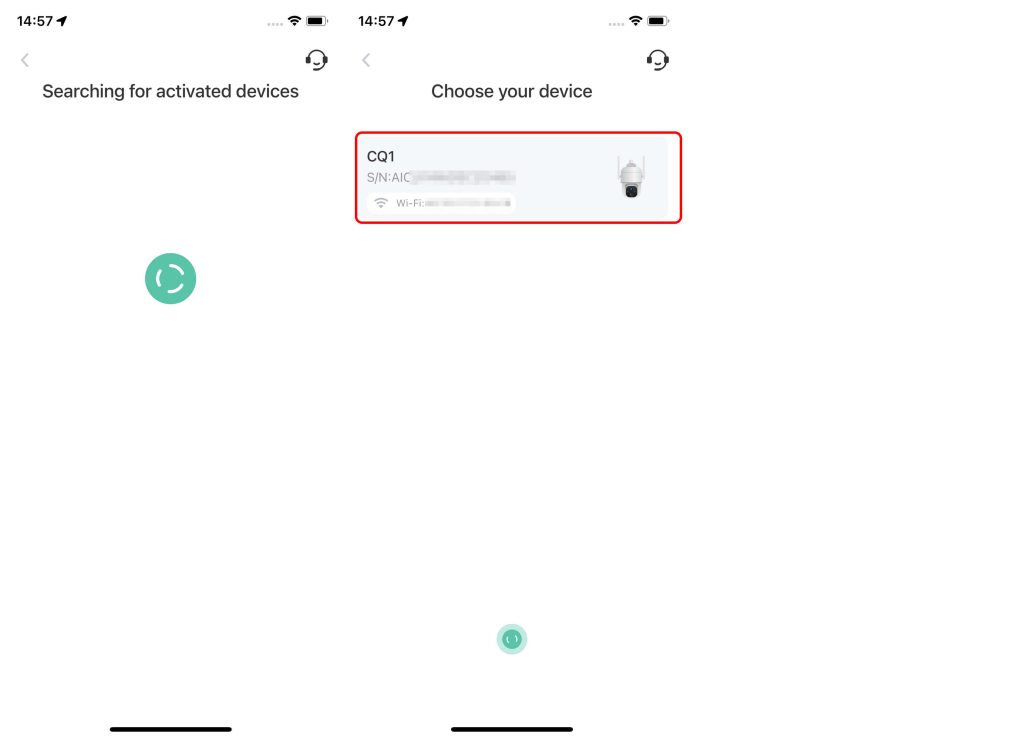
2. The app will search for nearby VicoHome cameras. Wait a few seconds, and once the camera is discovered, it will be displayed. Then, tap on the searched camera.
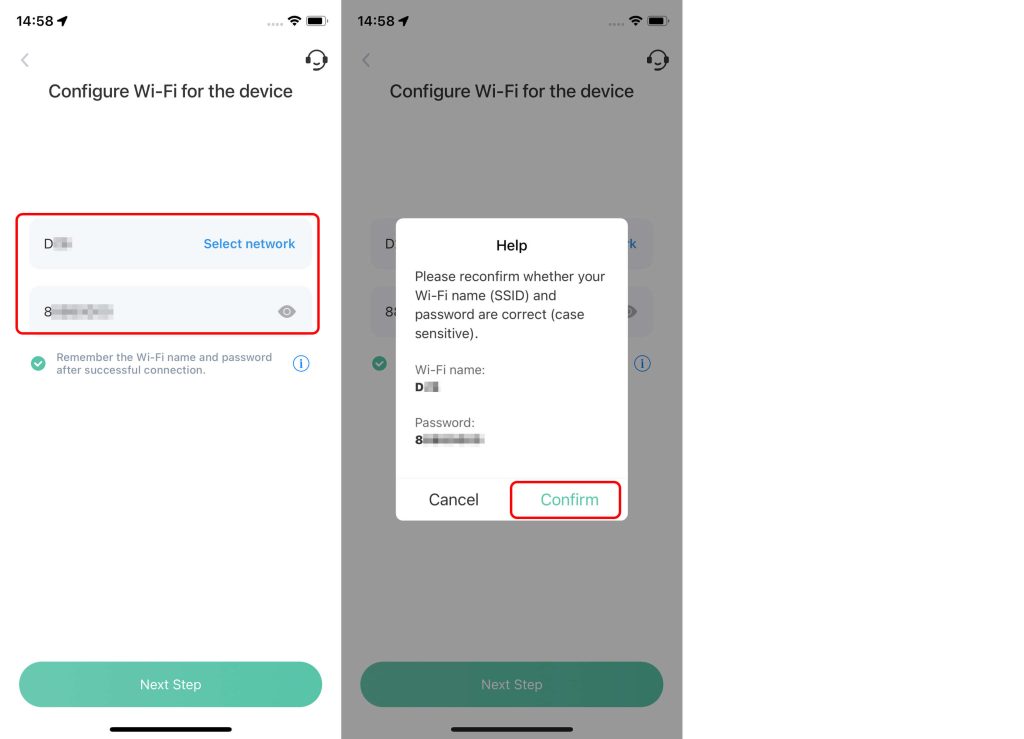
3. Enter your Wi-Fi password, then tap Next Step. After confirming that the Wi-Fi name and password are correct, tap Confirm. The app will display the Wi-Fi network your phone is currently connected to. If you do not want the camera to connect to this Wi-Fi, please change the Wi-Fi connection on your phone first.
Most VicoHome cameras only support 2.4GHz Wi-Fi. If you are unsure whether your camera supports 5GHz Wi-Fi, please connect the camera to a 2.4GHz network.
4. Tap Got it. When the prompt “‘VicoHome’ Wants to Join WLAN Network” appears, you must tap Join to connect the camera. After tapping Join, please wait for the connection to complete.
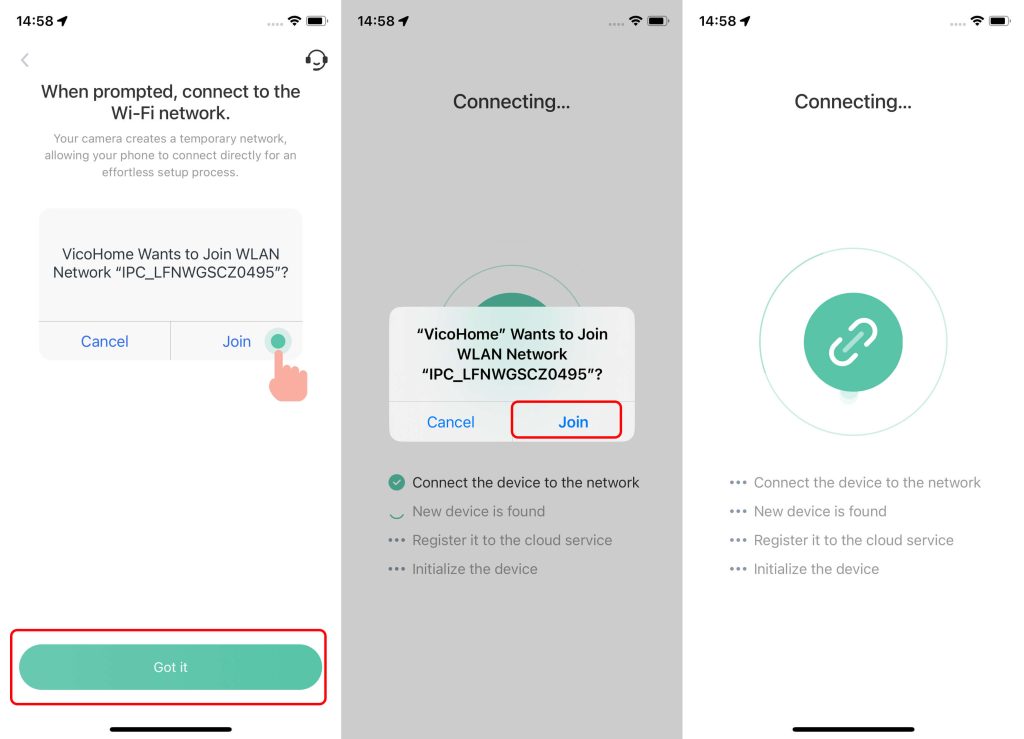
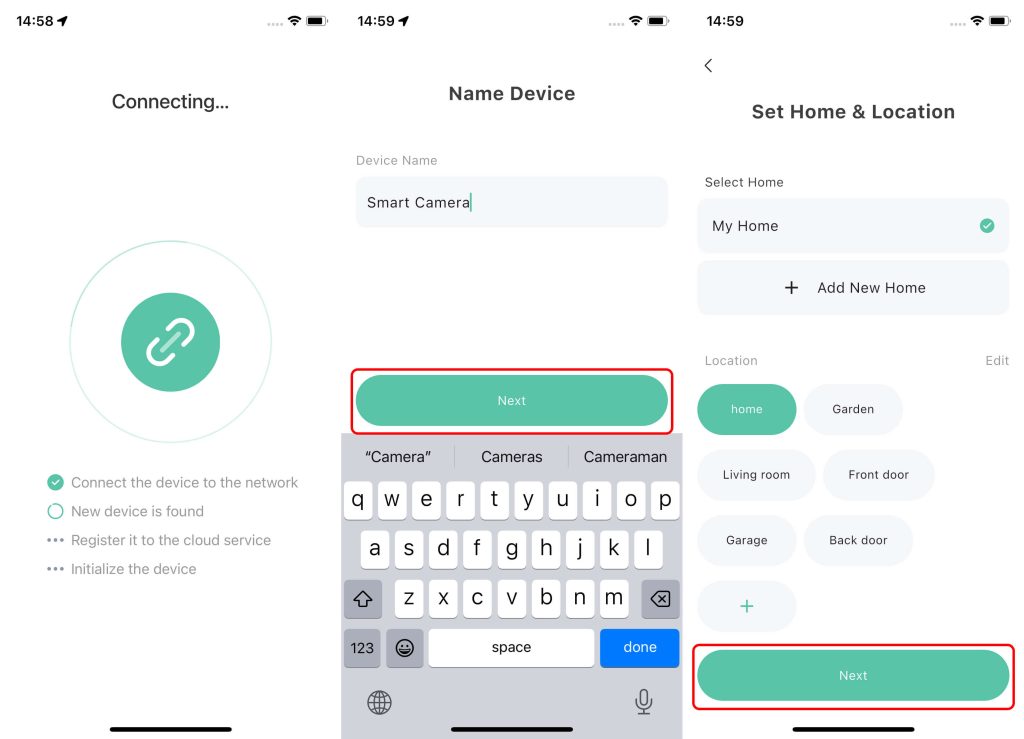
5. Wait for the connection to be established. Once the connection is successful, it will automatically proceed to the next step. Set a name for your camera, and you are ready to use it.
If your VicoHome camera has a network port, you can also use an Ethernet cable for the connection. For more setup methods, please check this article: Connecting the VicoHome Camera
VicoHome Camera Settings
Follow the guides below to share your camera, manage recordings, and adjust motion notifications.
Sharing the Camera
A VicoHome camera can only be linked to one account. To allow multiple people to use the camera, you need to use the sharing feature to share the device with other accounts.
1. Tap the Share icon and select Shared Access. A QR code will appear; share this QR code with the person who wants to connect to the camera.
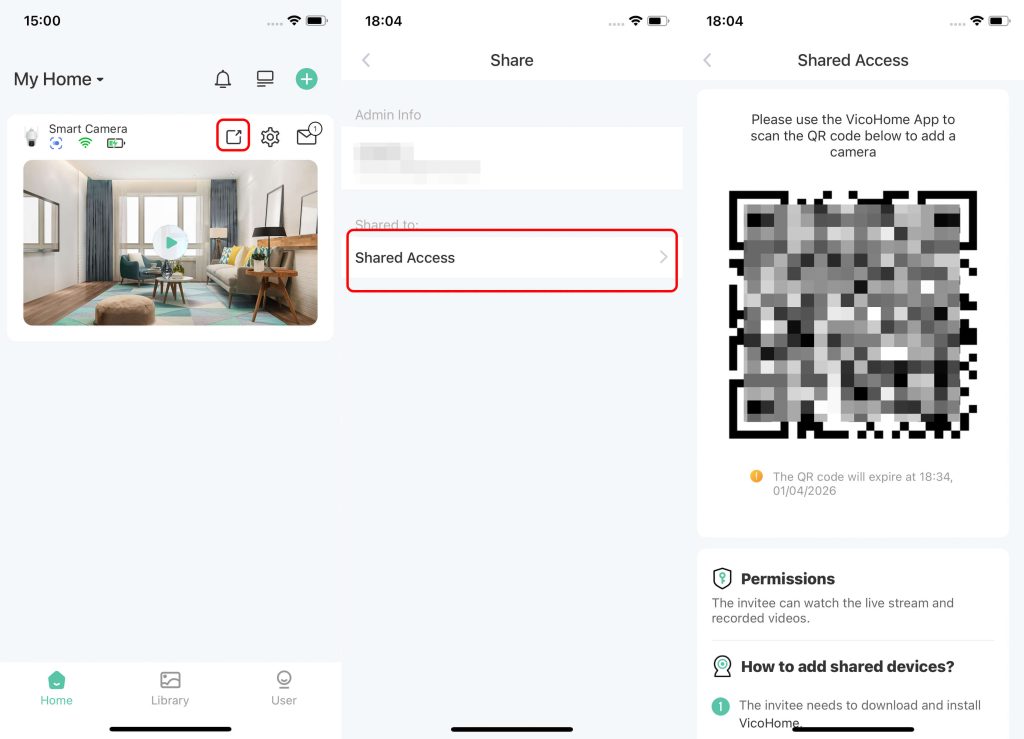
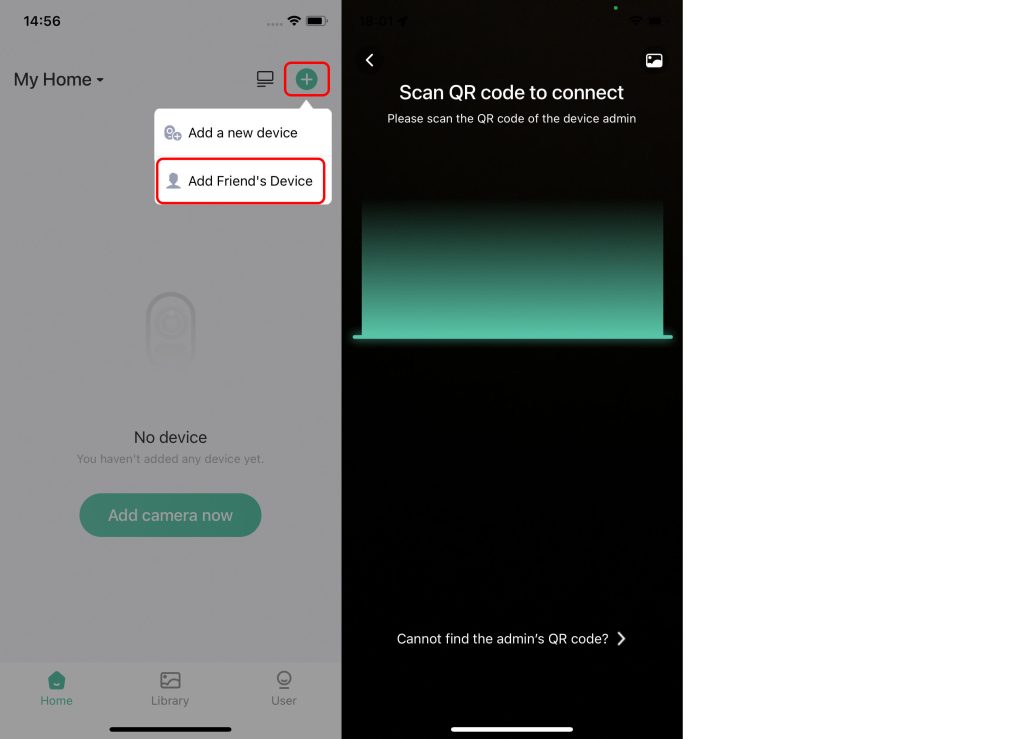
2. The person receiving the share also needs to register and log in to VicoHome to connect to the camera. After logging in, tap ‘+’, select Add Friend’s Device, and then scan the shared QR code to connect to the camera.
MicroSD Card Recording Settings
Supported cameras can record to a MicroSD card without an Awareness subscription. Cloud video storage and history depend on the service plan available for your camera.
1. Insert the MicroSD card: Please insert the card while the camera is powered off, then turn the camera on. Once the startup is complete, you can find SD Card Management in the camera settings.
If this option does not appear, it means the camera has not recognized the MicroSD card.
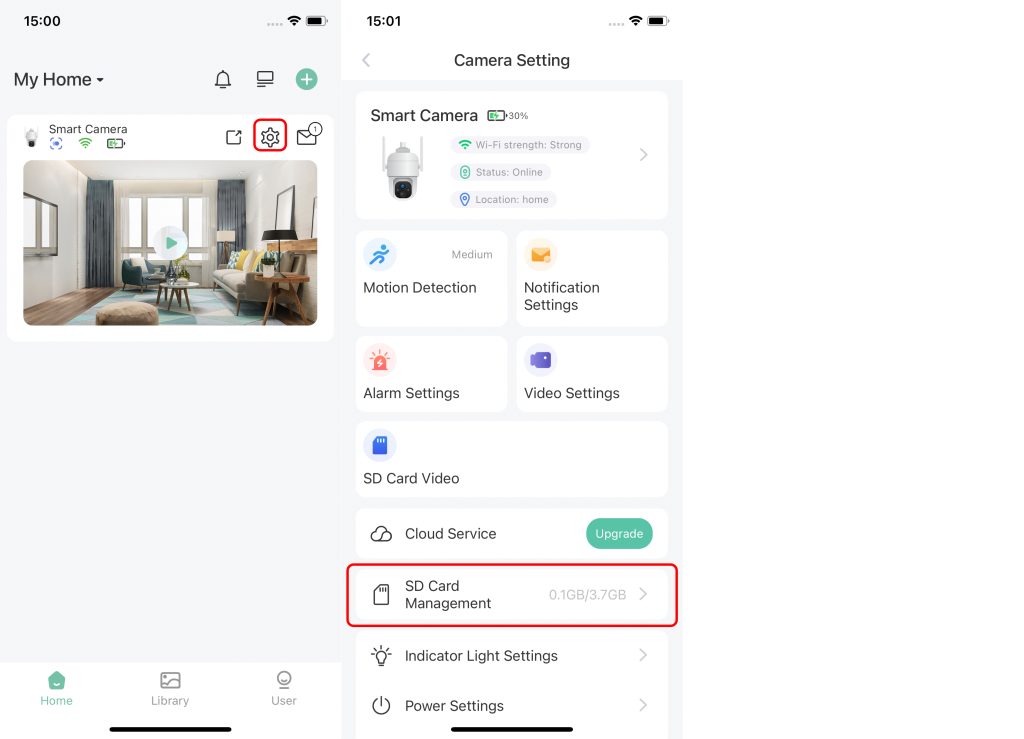
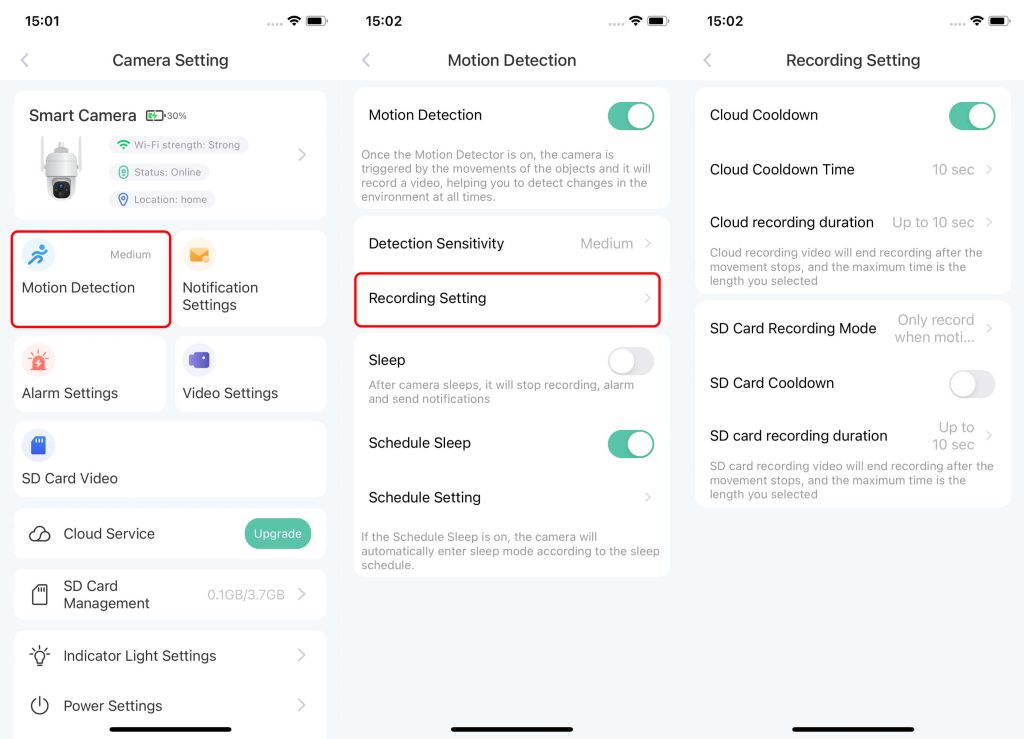
2. Recording is enabled by default, so no additional setup is required. Under Motion Detection > Recording Setting, you can configure the SD Card Recording Mode and SD card recording duration.
Recording modes depend on your camera. Battery-powered models generally record motion events; continuous recording requires a model that supports it and an appropriate power supply. Check the options available in your camera settings.
Changing Recording Quality
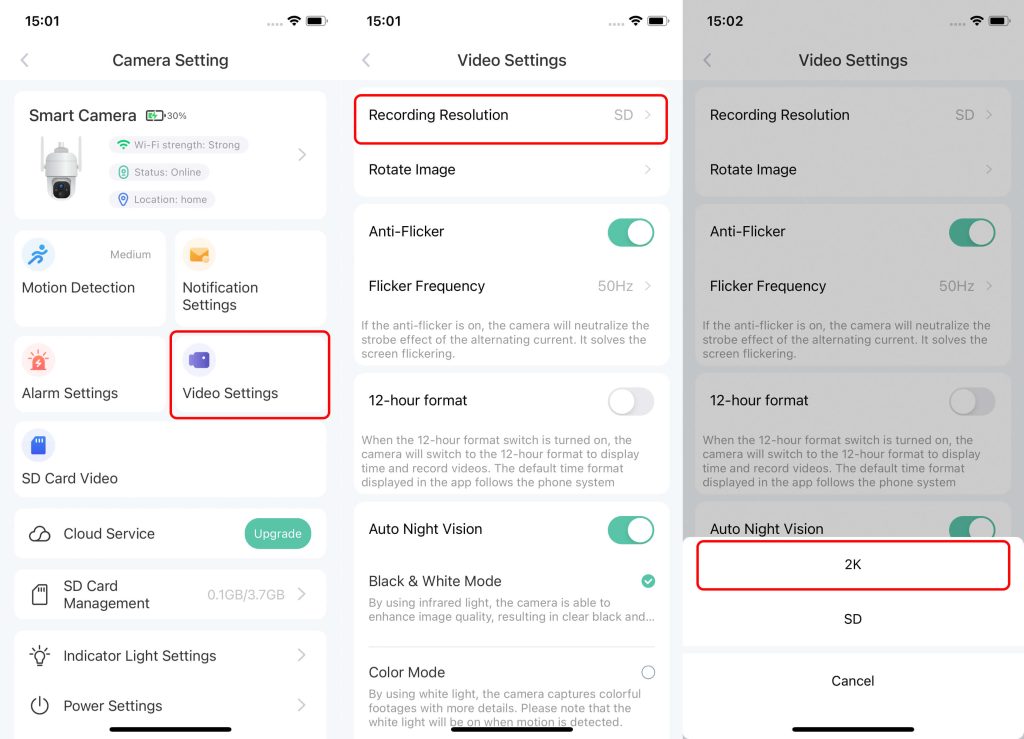
By default, the camera records in Standard Definition (SD). You can change this to High Definition (HD) under Video Settings > Recording Resolution.
Recording Audio Settings
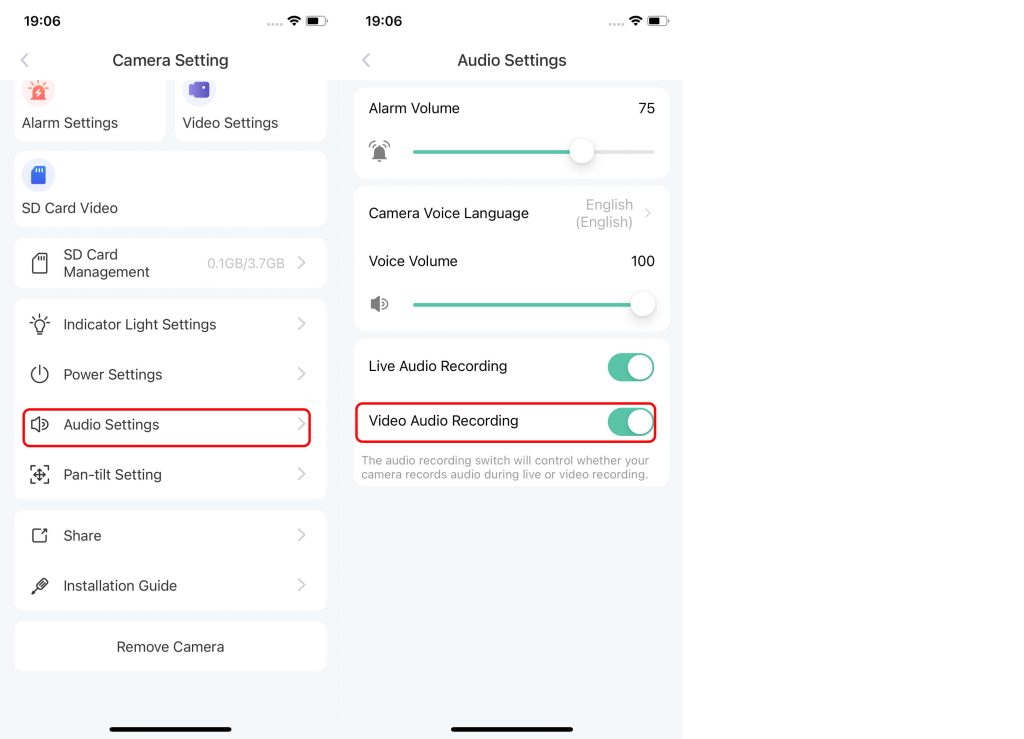
Under Audio Settings, you can turn the recording sound on or off.
Viewing Recordings
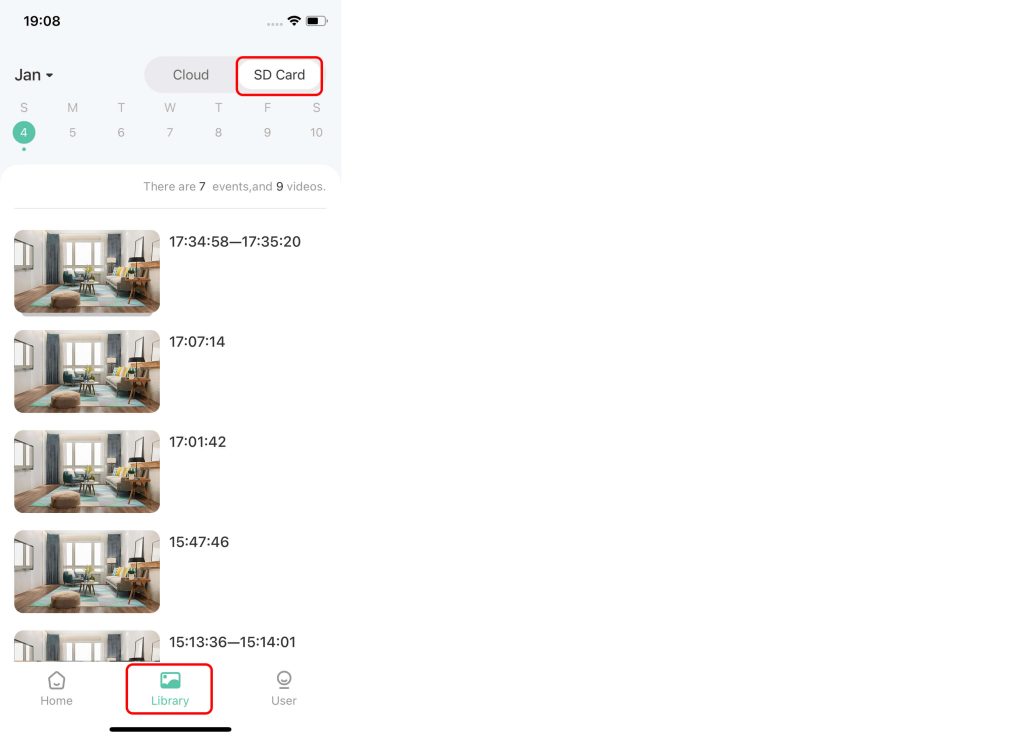
In the Library, select SD Card to view your recorded videos.
Motion Detection Settings
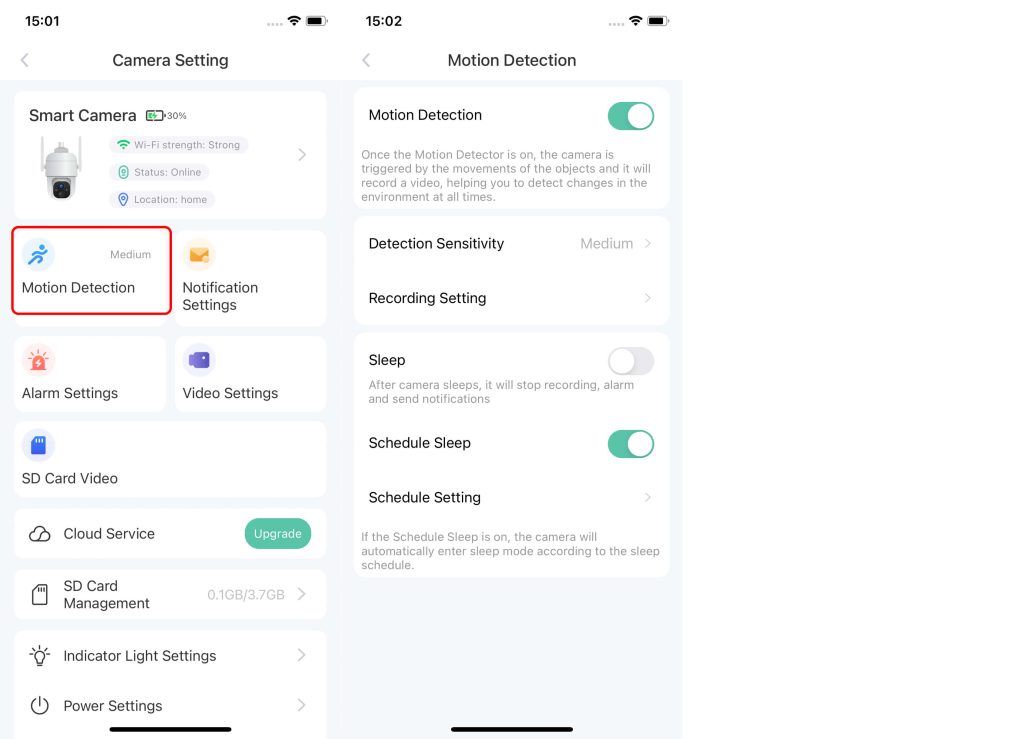
On the Motion Detection interface, you can toggle the Motion Detection switch and adjust the sensitivity. If the camera sends motion detection notifications too frequently, you can try lowering the detection sensitivity.
Alarm Settings
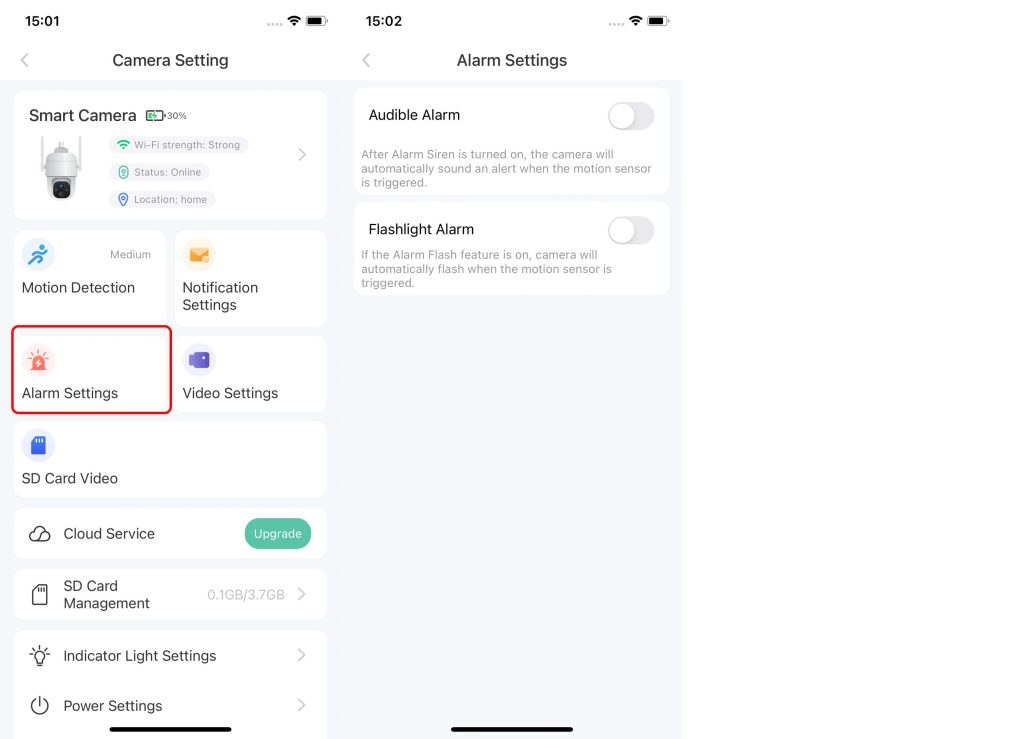
Audible Alarm: After Alarm Siren is turned on, the camera will automatically sound an alert when the motion sensor is triggered.
Flashlight Alarm:If the Alarm Flash feature is on, camera will automatically flash when the motion sensor is triggered.
Viewing Motion Notifications
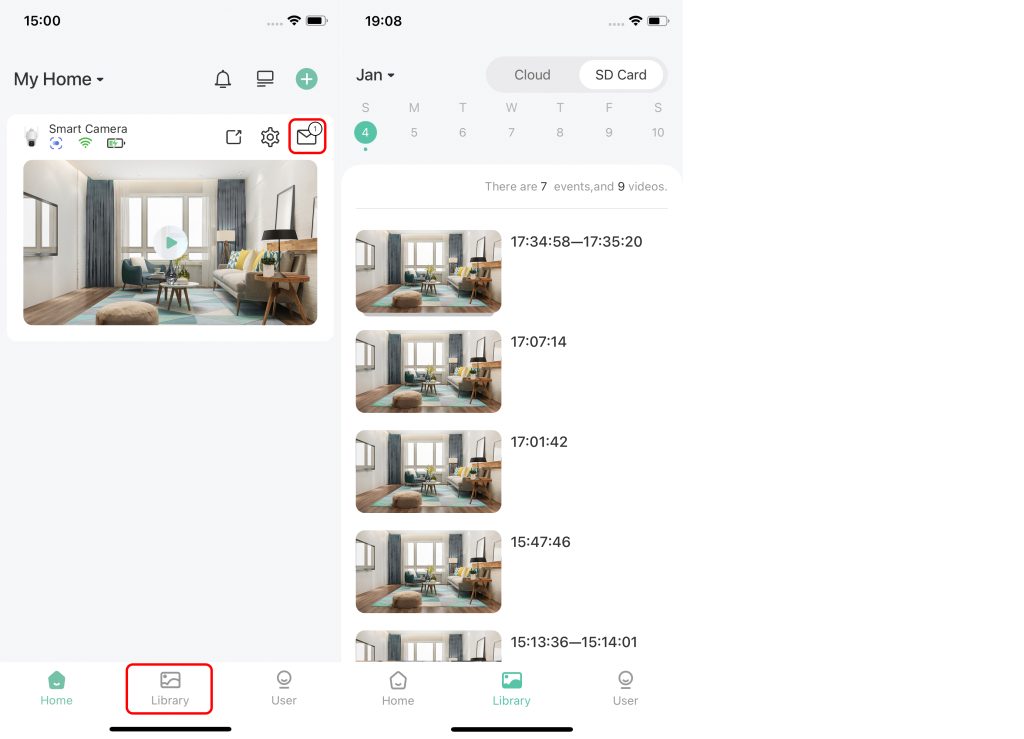
On the Library interface, you can view your motion notifications.
VicoHome for PC
Explore the VicoHome for PC guide for computer compatibility, installation options, and limitations. For camera setup and everyday monitoring, use the Android or iPhone app.
The mobile app is listed as compatible with Apple silicon Macs. Windows emulator methods are not documented in VicoHome’s support guidance, so check the requirements and limitations before choosing a computer-based option.
Cameras That Work with VicoHome
Check that the camera’s packaging, product listing, or manual specifically names VicoHome. Similar-looking cameras can use different apps; confirm compatibility with the seller before buying.
Outdoor Cameras
Explore camera types, connection requirements, and device options.
Explore camerasSolar Cameras
Learn about solar-powered models and their power arrangements.
See solar camerasBird Feeder Cameras
Find information about bird feeder cameras that use the app.
See bird feeder camerasDoorbell Cameras
Explore doorbell camera options and their setup information.
See doorbell camerasLooking for a light bulb camera? Explore the light bulb camera guide
Browse solar camera options


VicoHome FAQ
Quick answers about the app, subscriptions, camera compatibility, and setup.
Is the VicoHome app free?
VicoHome is free to download. Basic features include live view, motion alerts, camera sharing, and local SD card recording on supported cameras. Some features depend on your camera model.
Do I need a VicoHome subscription?
An Awareness subscription is optional for basic camera use. Cloud video history and advanced alerts depend on your plan and camera. Read our VicoHome subscription guide for price examples, free features, and how to cancel renewal.
Can I use VicoHome on a PC?
The mobile app is listed as compatible with Apple silicon Macs. Windows emulator methods are not documented in VicoHome’s support guidance. See the VicoHome for PC guide for requirements and limitations.
Which cameras work with VicoHome?
Check that your camera’s packaging, product listing, or manual specifically names VicoHome. Similar-looking cameras may use a different app, so confirm compatibility with the seller. Explore the VicoHome camera guide for device categories.
Why won’t my VicoHome camera connect?
Use the connection problem checks for a camera that is not found, a QR code that will not scan, or failed Wi-Fi setup. The same guide covers changing Wi-Fi, offline recovery, and restart and reset options.